Gopher Request, made simple.
This is your step-by-step guide to getting anything done — a delivery, a move, a haul, a ride, a hand around the house. You describe what you need, you decide what to pay, and a trusted local Gopher comes to you.
Sign in or create your account
Gopher is passwordless — there's nothing to remember. You sign in with a one-time code sent to your phone or email.
- Open the app and choose Sign in with phone or Sign in with email.
- Enter your number or email and tap Send Code.
- Type the 6-digit code we text or email you. That's it — you're in.
New here?
Tap Create an account and add your name, phone, email, address, and date of birth. We'll verify your phone and email with the same quick code step. You'll also tell us how you discovered Gopher — and if a friend referred you, you can enter their 6-digit Gopher User ID (or tap “skip” if you don't have it).
Complete your profile
From your dashboard, open Account → Personal Info to review everything on file: your name, email, phone, address, date of birth, and how you found Gopher.
Payment method
You won't need this until your first request. When you're ready, your card is added securely through Stripe, our trusted payment partner — you can pick it (and apply a promo code) right on the Review step.
How to submit a request for a service
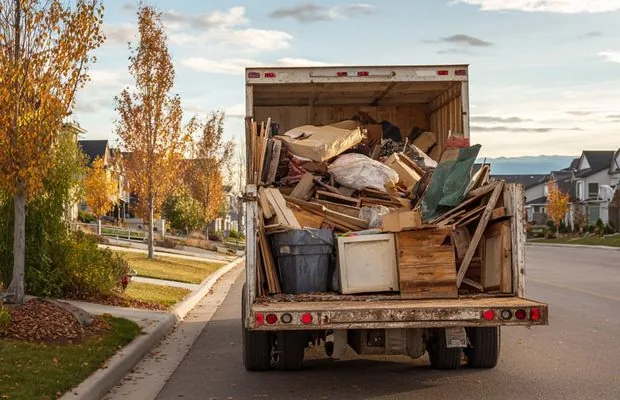
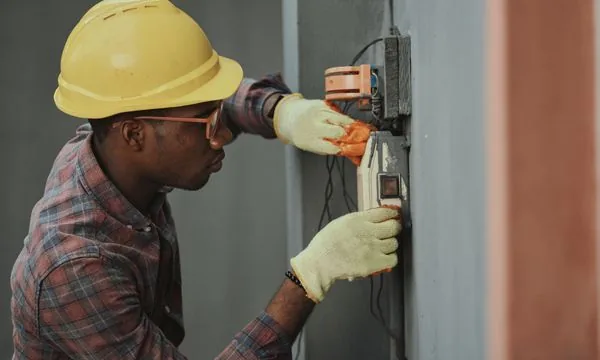
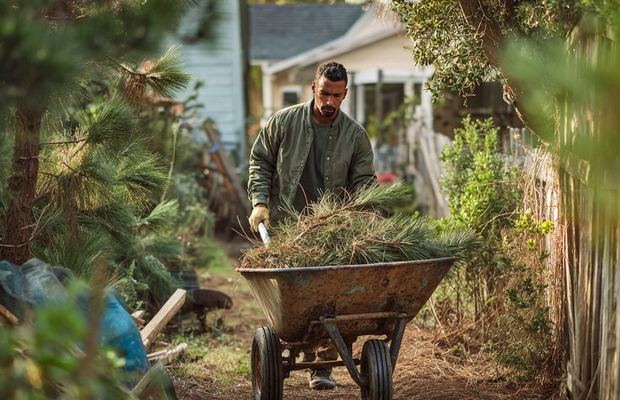
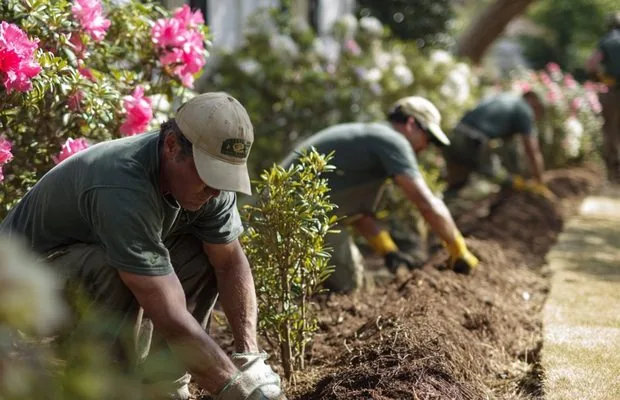
Start by tapping the service that fits best. The category you choose decides which workers see your request and what details we ask for next — so pick the closest match.
 -To under Previous requests gets it down to a single tap.



Describe the job clearly
This is the most important screen. Your description is exactly what workers read when deciding whether to take your job — so be specific.
✅ A great description
“I need 12 yards of mulch laid in my backyard. Worker must bring their own equipment.” (plus a photo)
🚫 Too vague
“Need mulch spread in my backyard.”
You can attach up to 3 photos so workers know exactly what they're walking into.
Details that change by service
Depending on the category you picked in Step 1, you'll also see one of these:
- Delivery → Delivery Type. Flip on Age-Restricted if your order contains items like alcohol or tobacco (this turns on ID safeguarding). Flip on Items Purchased if your Gopher needs to buy something for you, then enter the Cost of Goods so they can pay on your behalf.
- Ride Sharing → Rider Info. Set the number of riders and bags, plus any special instructions for your driver.
- Moving & Junk Removal → Item Info. Tell us the item count and flag anything hazardous. Hit 5+ items and we'll automatically switch you to multi-item mode.
Who does the work — and how you pick them
For bigger jobs (moving, labor, yard, junk), tell us how many workers you need and whether you're paying by the hour.
How is your worker selected?
For Delivery, Junk Removal, and Ride Sharing, you can choose how a Gopher is matched. Every other service has you pick your own worker.
Where it happens
Enter your pickup and destination as needed for your service. When you type an address, Gopher pings the area and shows how many workers are nearby.
- For Moving, note any stairs at each location so your crew arrives prepared.
- For flexible deliveries, you can choose “No specific pickup” so your Gopher buys from the closest store.
- Got more than one stop? Enter the final destination here and list the other stops in your description — we recommend full store addresses, not just names.
Decide what to pay
Gopher is unlike any other platform: you set the price, and 100% of it goes to your Gopher. Think of your offer as a fair wage, not a tip — your Gopher works for you, not for Gopher, Inc.
Bids aren't offered for Delivery or Ride Sharing, or when a job needs more than one worker.
Not sure what to offer? Ask Gopher iQ
On Delivery and Ride Sharing, tap the Gopher iQ suggestion to get a fair-rate estimate built from thousands of similar requests in your area. You always have the final say on the amount.
Confirm the details and pick your timing
Here's your whole request in one place. Apply a promo code, choose your payment method, and decide when you need it. Need a sanity check? Tap “Second set of eyes” for quick tips on your category.
When do you need it?
⚡ Need ASAP
A Gopher gets moving the moment they accept. Expires after about an hour if no one takes it.
🗓️ Flexible
Within 24 hours, a week, or two weeks. You and your Gopher lock a firm time after they accept.
📅 Specific date & time
Pick the exact day and time slot you want it done. Just say when.
When everything looks good…
You're looking for a Gopher 🎉
Your request is now broadcasting to local workers. You'll often see a banner showing how many Gophers are already interested. From here, everything happens on your dashboard.
Tracking & alerts
Your dashboard groups every request and shows live counts. Anytime something needs you — an interested worker, a new message, a completed job — you'll get a notification and an attention flag.
Tap any tile to filter your requests. Once a worker marks a pick-up/drop-off job “in progress,” you'll see their location on the map.
Choosing & hiring your Gopher
Open your live request to see everyone who's interested. For each worker you can review their profile, then take an action:
- Hire — lock in that worker for the job.
- Consider — set them aside in a shortlist while you compare. You can Approve or Deny them later.
- Deny — pass on that worker.
If your job needs a set number of workers, Gopher won't let you hire more than that — you'll get a heads-up if approving would go over your crew size.
Messaging your Gopher
All messaging happens inside the app, in your Inbox. Before you hire, a worker can ask a clarifying question; once hired, you and your Gopher can chat freely about the job.
Confirm & rate
When your Gopher marks the job complete, you'll get an app notification and a text. Tap through to the confirmation screen.
- Tap Confirm once you've verified the job was done right.
- Rate your Gopher on accuracy, communication, quality, and timeliness — this shapes the jobs they see next, so a job well done deserves 5 stars.
- Optionally add them as MY Gopher for next time.
Something wrong? Use Dispute instead, add a comment, and give your Gopher a chance to make it right before escalating.
History & request again
Every request you've made lives under Previous requests in the sidebar, filtered by the pills across the top — All (the default), -To’s, Completed, Expired, and Cancelled. Open any one to see the full details.
Two ways to run a request again
- Request again NOW ⚡️ — re-sends that request exactly as it was, immediately. If the Gopher who did it is one of your MY Gophers, they get first dibs automatically.
- Request again w/ edits — prefills a new request from the old one, lets you pick which MY Gophers get first dibs, and takes you to Review & submit so you can change anything before it goes out.
My -To’s — the requests you make over and over
Got a request you make every week? Save it as a -To and it re-sends with a single tap — no review screen, no confirmation. Tick the checkbox on any Completed request to start one. The first time you do, a short intro explains the one-tap behaviour before the editor opens.
A -To is a copy you own, so everything is editable before you save it:
- Name it something you'll recognise — “Friday grocery run.”
- Adjust the service type and details if the job has drifted since last time.
- Set the payment to your Gopher. It arrives carrying the amount a Gopher already accepted for that job — your best odds of it being picked up again — but you can change it.
- Choose the card that gets charged, and which MY Gophers it goes to first.
- Accept the liability waiver, pre-ticked directly above Save.
- Save. It appears as a card at the top of Previous requests with one button: Request my -To NOW ⚡️.
Fees & pricing, explained
Your offer is 100% what your Gopher earns. On top of your offer, a few small platform fees apply:
| Fee | Amount | What it's for |
|---|---|---|
| Gopher Fee | $0.99 – $4.99 | Varies by service type |
| Instant Transfer Fee | 8% of total | Pays your Gopher immediately on completion |
| Age-Restricted Fee | $1.99 | Only on age-restricted deliveries |
| TrustShield™ Discount | – $1.00 | Applied to age-restricted and ride sharing orders when you add the free TrustShield badge |
A worked example
A general-errand delivery where you want to pay your Gopher $30 total (including $20 you're reimbursing for goods):
Your Gopher receives the full $30 — using the app cost you just $3.47.
Age-restricted orders & TrustShield
For age-restricted items (like alcohol or tobacco), the law and our policy are strict — and we follow them to the letter.
- You must agree to the age-restricted waiver at submission.
- You must be present with a valid government-issued ID at delivery. Contactless delivery is never allowed for these items.
- If you can't show ID after your Gopher has already purchased the items, there's no refund for the goods or the offer — so don't request these unless your ID will be on hand.
- You have to be there. If your Gopher arrives and you're not present, they start a 10-minute timer and we text the number on your account. If the timer runs out, the request completes as a No-Show Completion — your Gopher keeps the items and is paid in full, and it's not refundable.
Gopher TrustShield™ — free, and saves you money
Add the free TrustShield badge to verify your identity once — a quick two-step check right on the web: a photo of your government-issued ID, then a selfie. After that you get:
- $1 off every age-restricted and ride sharing order.
- Skip re-entering your ID each time — verify once, use everywhere.
You'll still show your physical ID if it's an age-restricted delivery, but ordering gets much faster.
Safety & the no-charge promise
- Your money is protected. When a request is accepted, funds move to a secure holding account via Stripe. If the job isn't completed, the authorization is released back to your card.
- No worker, no charge. If we can't connect you with a Gopher, your request simply expires — with no charge and no authorization.
- Gopher isn't auto-fulfillment. It's an open marketplace; a worker decides whether your offer is worth it. A fair offer in an active area is usually accepted fast.
- Cancelling. Before your Gopher starts you can cancel or repost for free; once a Gopher marks a job in-progress and/or purchases items, cancelling is subject to a flat $5 fee, and if items were already purchased you are also responsible for their cost. See the Terms for full details.
Need help?
You're ready to go! For anything else:
- Tap More → Help Center in the app, then “Send us a message.”
- Browse the full FAQs — updated weekly.
- Email us at support@gophergo.io.
Now you're ready to Gopher it!